Now that you’ve got a deck together, it’s time to set up the technology you need to play online!
Webcam
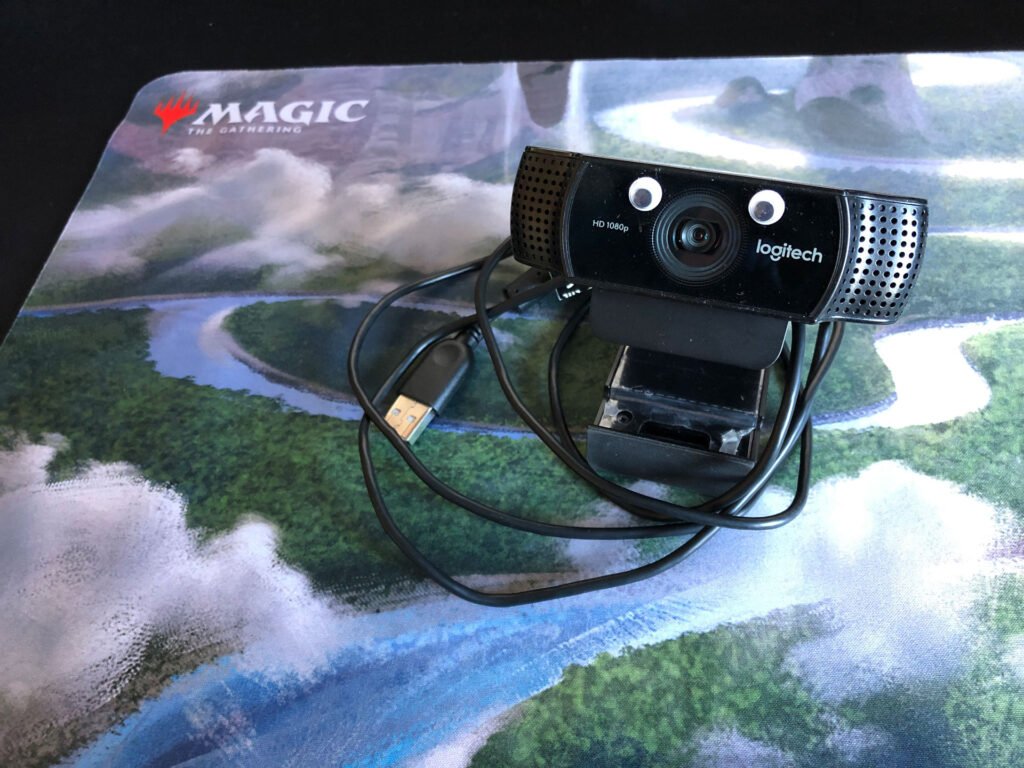
A webcam or something acting as a webcam is the main interface you use for interacting with SpellTable or Convoke. You’ll want to ensure that you have a device capable of interfacing via USB, with a not terrible resolution. Anything at 1080p or above will be more than sufficient. Most webcams are straight plug and play, so I won’t go into any setup here.
When setting up the webcam, you’ll want to ensure that:
- Make sure your webcam is positioned so that it can see your entire play area
- Make sure your webcam is in focus and can clearly see the cards on the table
- Make sure your lighting is good, with extra special care taken to minimise glare. Glare is often the downfall of a good setup
Phone
Using your phone as a camera for SpellTable is a great option if you don’t have a webcam or want better quality. Here’s how to set it up:
- Download a webcam app: You’ll need an app that turns your phone into a webcam. SpellTable recommends Iriun Webcam, but EpocCam and DroidCam are other good options. Install the app on your phone and the companion software on your computer.
- Connect your phone and computer: You can connect wirelessly using Wi-Fi, or use a USB cable for a more stable connection. The app will guide you through the connection process.
- Enable the mobile webcam in SpellTable: Open SpellTable in your web browser on your computer. Go to the settings (usually a gear icon) and find the option to “Use mobile device as webcam” or similar. Make sure it’s enabled.
- Open SpellTable on your phone: On your phone, open a web browser and go to the same SpellTable game URL that you’re using on your computer. Log in with the same account.
- Adjust your phone’s position: Check that your phone’s camera feed appears correctly in SpellTable on your computer. Adjust your phone’s position and angle to ensure your play area is clearly visible in the frame.
A few things to remember:
- Phone as primary device: You can actually use your phone for everything (camera and SpellTable interface) if you prefer.
- Connection stability: Wireless connections can be less reliable. If you experience lag or disconnections, try using a USB cable.
- Battery life: Using your phone as a webcam can drain its battery quickly, so keep it plugged in.
Microphone
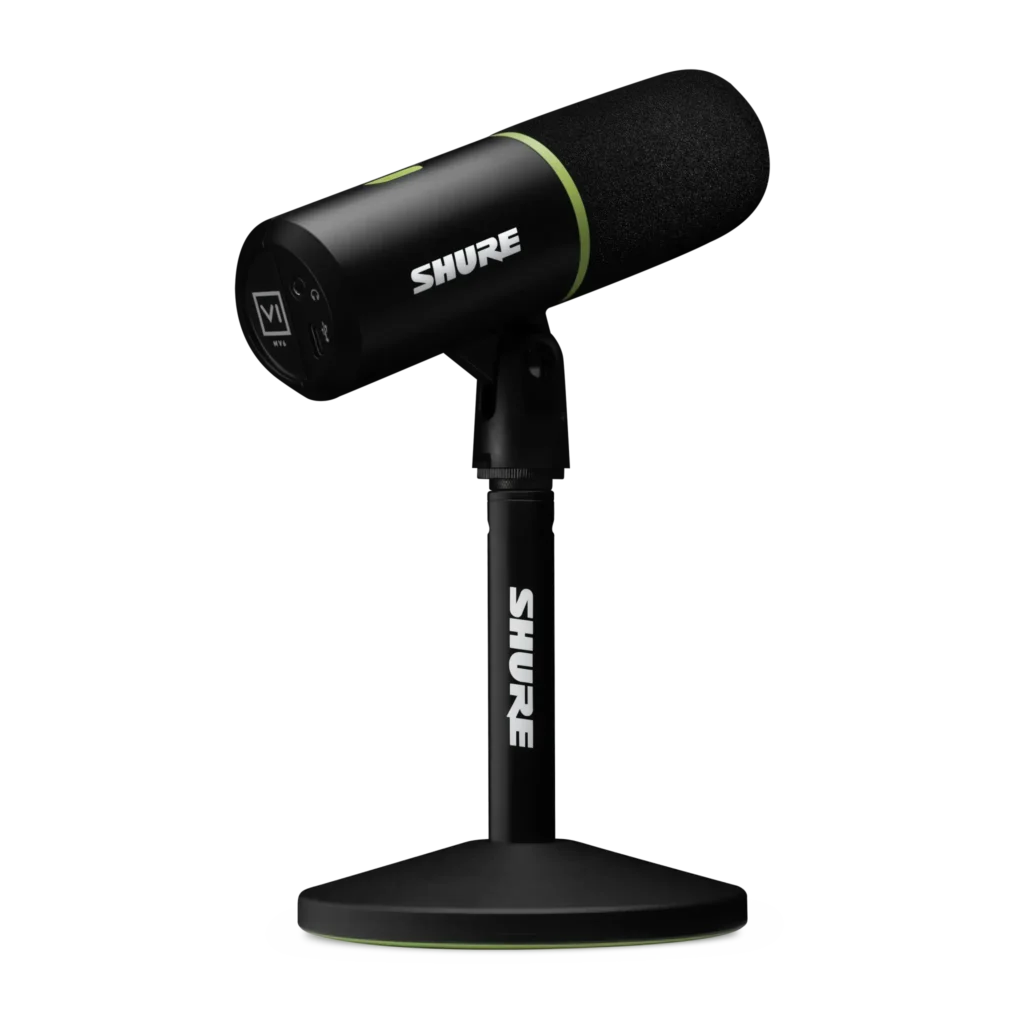
If you’ve used a webcam as your primary visual interface, I would highly recommend a nice microphone to plug into your computer. Webcam mics are typically not great, and given that you need three people to be able to clearly hear what you’re saying, it will make a big difference.
A mic like this is suitable and works in a plug and play manner.
A microphone will also work much better with Discord and the noise cancelling capabilities than the low fidelity audio that will come out of a webcam.
Stands
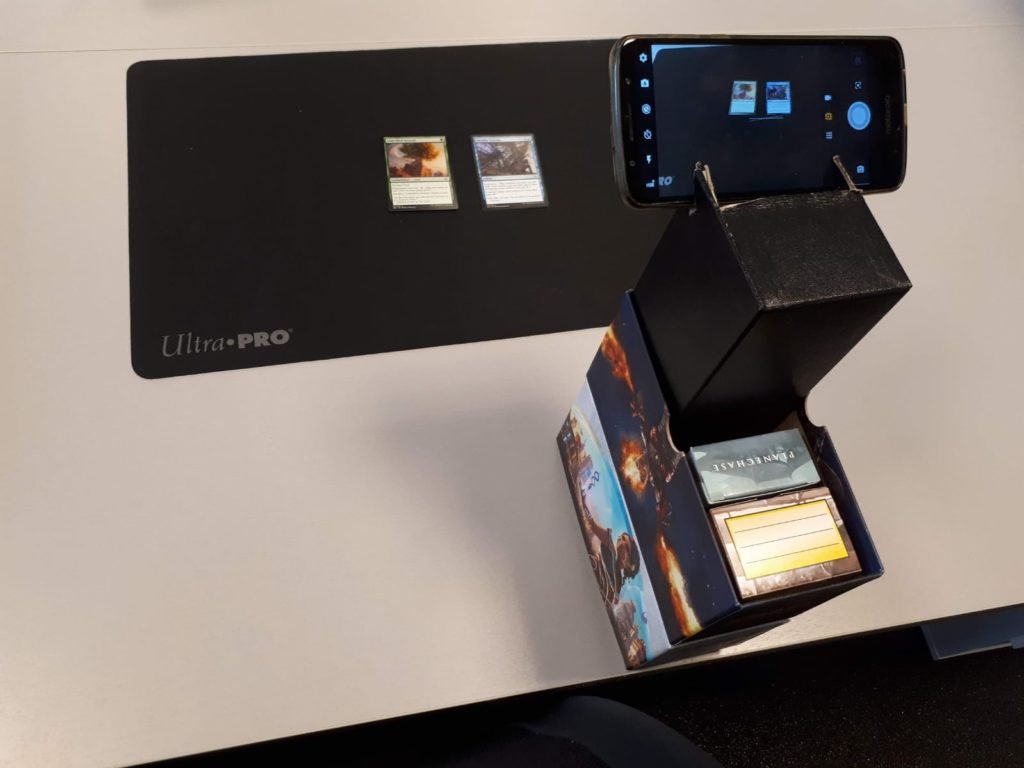
After you’ve decided on what you want to use with SpellTable, you need to get it positionally in the right place. You can use a variety of stands or holders that’ll enable you to position the phone or webcam just right.
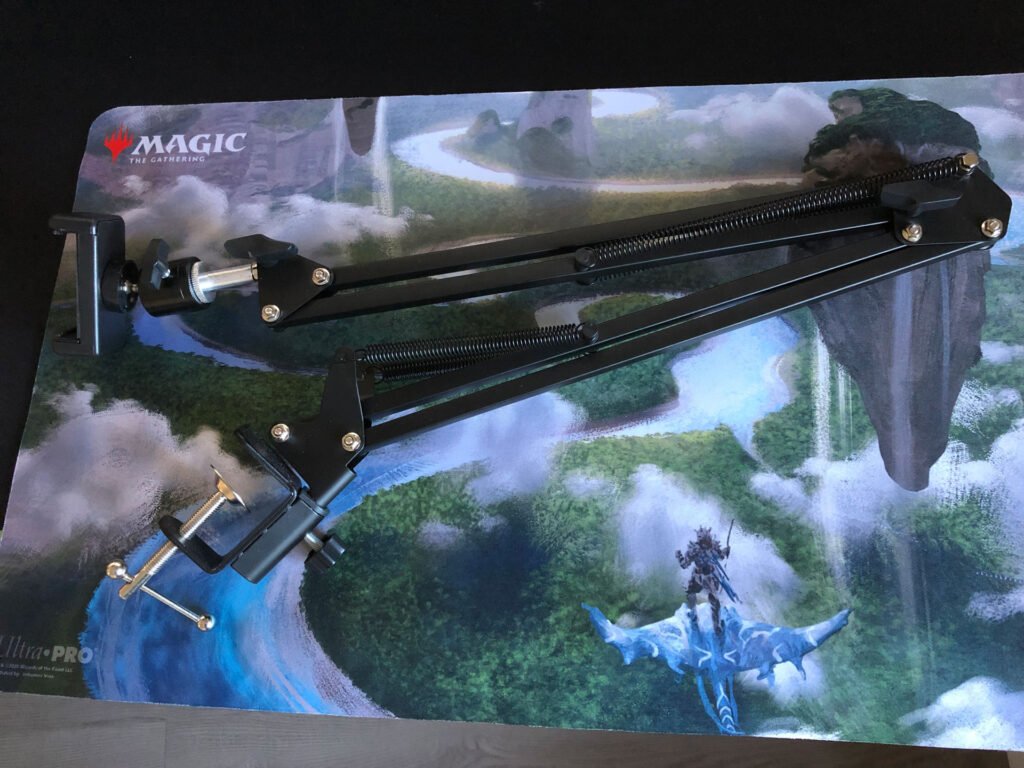
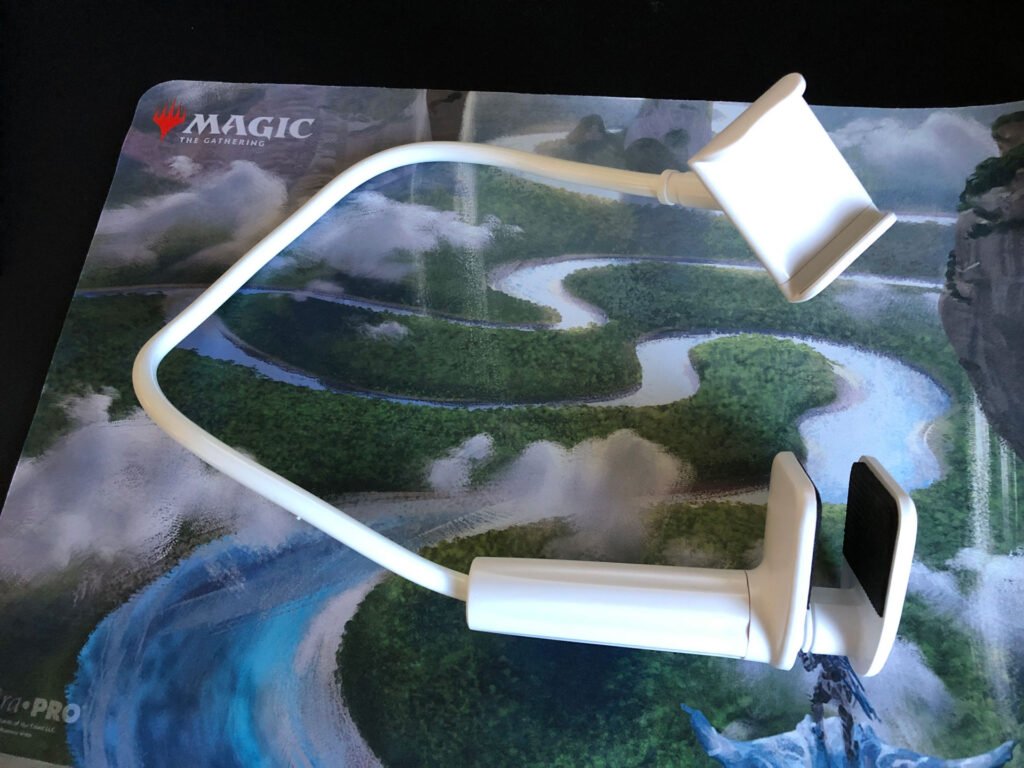
There are also some awesome DIY approaches you can use, including stuff made from MTG fat packs!
Now you should be ready to connect to OBS and have a good game of cEDH!