
Want to show off your cEDH gameplay or just play with your friends online with style and clarity? Here’s how to set up OBS (Open Broadcaster Software) to capture your webcam and overhead playmat and stream it over Discord. Clean, easy, and effective.
What You’ll Need
- A computer or laptop
- A webcam or overhead camera (your phone can work!)
- OBS Studio (Free, download here)
- A Discord account and a server with voice channels
- A mic/headset (please no echo chambers)
- (Optional) A playmat-sized space and good lighting
Step 1: Install OBS
If you haven’t already, download OBS Studio for your system:
Install it and open it up. It may look overwhelming at first — don’t worry. You only need a few things to get started.

Step 2: Add Your Camera
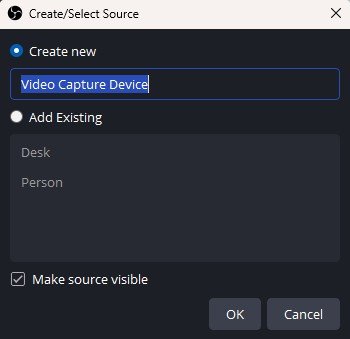
In OBS:
Tip: You can use your phone as a camera via apps like DroidCam or EpocCam
- In the Sources box (bottom center), click the + and select Video Capture Device.
- Name it something like
Overhead Cam. - Choose your camera from the dropdown. You should see a live preview.
- Resize and reposition as needed.
Step 3: Set Up a Scene Layout
To keep things clean and readable:
- Stretch your camera feed to cover the canvas.
- Optionally add an overlay (like player names or logos) by dragging in images via + → Image.
- To add your face, repeat Step 2 but select a different camera for a face cam box.
Step 4: Capture Your OBS to Discord
Discord doesn’t natively recognize OBS output, but here’s the trick:
- Go into a voice channel on your server.
- Click “Screen” at the bottom left → “Applications” tab.
- Select OBS Studio.
- Stream at 720p/30fps minimum for clear resolution. (Higher if you have Discord Nitro.)
You can also use a plugin called Virtual Camera for OBS which simplifies the setup. > https://obsproject.com/kb/virtual-camera-guide
Step 5: Audio Tips
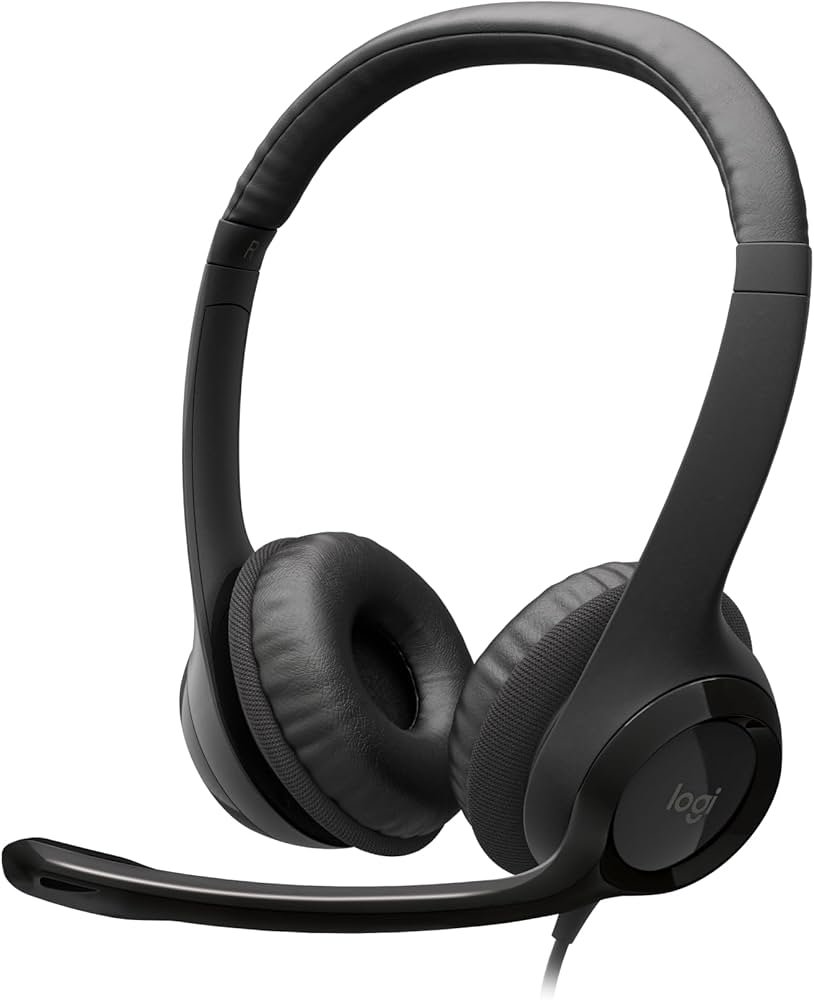
Use a headset to avoid echo.
In OBS, go to Settings → Audio and make sure your mic is set up correctly.
Bonus: Troubleshooting
Camera isn’t showing up in OBS?
- Check it’s not in use by another app.
- Restart OBS or your computer.
Laggy video?
- Lower resolution in OBS.
- Close other apps using bandwidth or CPU.
No one hears you?
- Check mic permissions in Discord and OBS.
- Make sure you’re not muted (yes, it happens to all of us).